

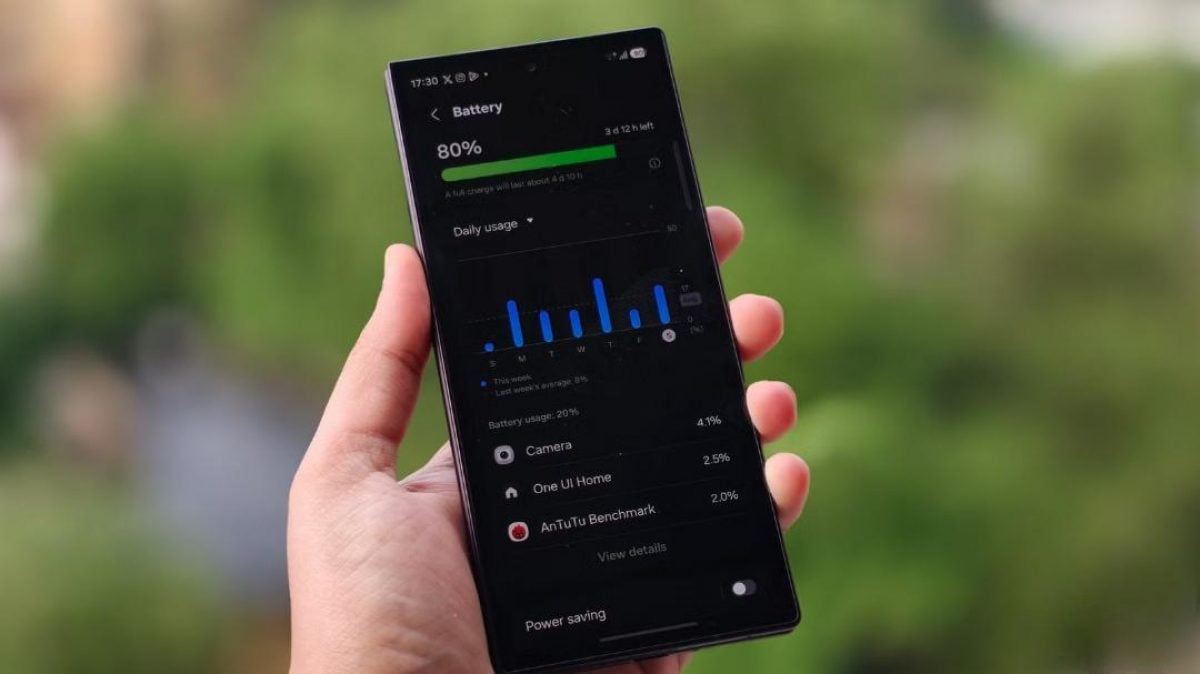
A hidden setting buried in Android's developer options menu can dramatically reduce battery drain that happens overnight, according to a MakeUseOf journalist who tested it.
The feature, called "Suspend execution for cached apps," is not something most users ever encounter, since the developer options menu is typically seen as a tool for advanced users who want to turn off animations or switch Bluetooth codecs. But the journalist found it contains several useful settings that go largely unnoticed.
Android normally keeps recently opened apps stored in cache so they can relaunch faster the next time they are used. This makes the phone feel smoother to use, but it also means some apps keep running background processes long after a user has closed them.
Social media apps, maps and other services can periodically wake up, refresh data or trigger background services even when they are not actively open. When a phone has many such apps installed, the cumulative effect drains the battery.
How much battery it saved
The MakeUseOf journalist said their phone used to lose around 7 to 10 percent of its battery charge overnight. After switching on the setting, that dropped to roughly 1 to 2 percent, though they noted results can vary depending on the device model and which apps are installed.
How to turn on the feature
The setting is hidden inside the developer options menu, which has to be switched on first. To do this, users should open Settings, then go to About Phone, find the Build Number entry and tap it seven times.
This unlocks a new Developer Options section in the settings menu. From there, users need to search for "cache" to find the "Suspend execution for cached apps" option and set it to Enabled.
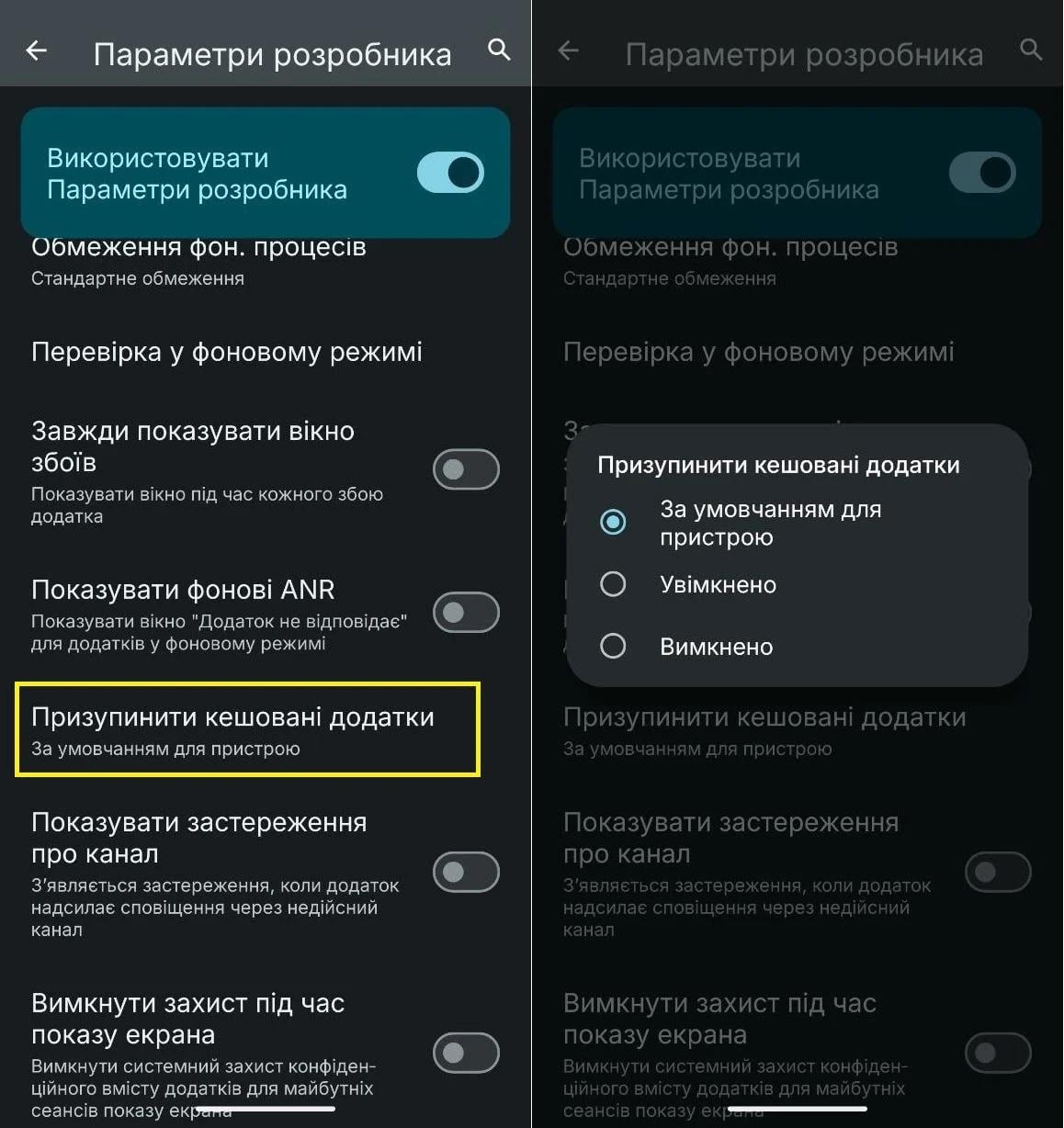
Once switched on, Android automatically pauses apps sitting in a cached state instead of letting them continuously draw on the phone's resources.
The drawback
The feature has one limitation: it applies to every app on the phone at once. There is no separate list in the settings that lets users exclude specific apps from the restriction.
In some cases this can mean certain apps take longer to resume after being reopened, or notifications arrive with a delay. The MakeUseOf editor said they personally had not run into these problems.
If a particular app does start behaving oddly, users can adjust its battery settings manually. This involves opening Settings, then Apps, selecting the app in question, going to its Battery section and setting it to Unrestricted. It is also worth checking mobile data settings and enabling the option to allow background data usage.
Other ways to save battery
Experts have previously identified five Google features that drain Android battery life, noting that some Google services run continuously in the background using location tracking, syncing and other phone resources. Users have also been advised to check five settings on a new Android phone before signing into Google.